Tableau
Connect Tableau Cloud to Formula Bot with PAT authentication, synced projects, workbooks, views, datasources, and chat-ready BI collections.
Connect Tableau Cloud to Formula Bot so users can chat with governed Tableau dashboards, views, and datasources. Tableau stays a data connector: users attach a synced Tableau collection to chat, and Formula Bot fetches internal CSV outputs through DataFetcher when analysis is needed.
Prerequisites
- A Tableau Cloud account
- Permission to view the projects, workbooks, views, and datasources you want to analyze
- A Tableau personal access token (PAT)
- Synced datasources if you want datasource-level querying
Formula Bot connects to Tableau Cloud with PAT authentication. No Connected App setup is required.
Create a Personal Access Token
- Open Tableau Cloud
- Go to My Account Settings
- Under Personal Access Tokens, create a new token
- Copy the token name and token secret immediately
Formula Bot stores the PAT secret encrypted. Connection settings show the secret redacted and never display it again — enter a new secret only when rotating credentials.
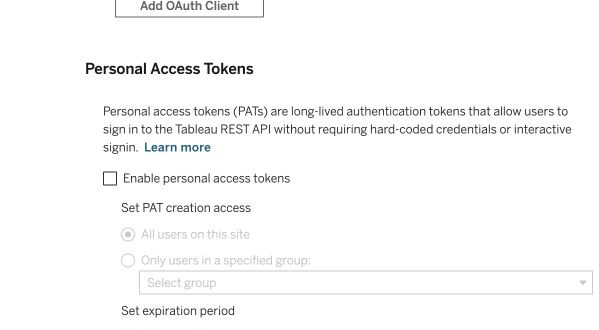
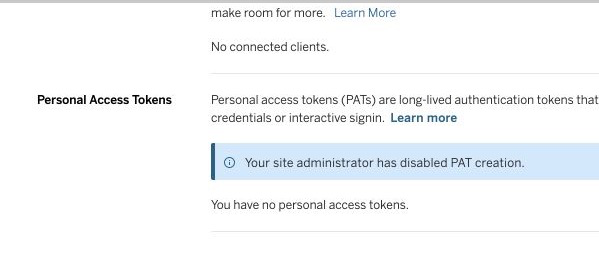
If Tableau says PAT creation is disabled, a site administrator needs to turn it on first from Settings, then General, then Personal Access Tokens.
Setup Checklist
Before opening the Formula Bot connector page, collect these values from Tableau:
| What you need | Where to find it | Notes |
|---|---|---|
| Server URL | Browser address bar in Tableau Cloud | Use the host, for example https://10ax.online.tableau.com |
| Site Name | The value after /site/ in the Tableau URL | Leave blank if your Tableau URL does not include /site/... |
| PAT Name | Tableau My Account Settings | This is the token name, not your Tableau username |
| PAT Secret | Shown once when the PAT is created | Copy it immediately; Tableau will not show it again |
Example Tableau URL:
https://10ax.online.tableau.com/#/site/acme/workbooks
Use these Formula Bot fields:
Server URL: https://10ax.online.tableau.com
Site Name: acme
If you are not sure what to paste, paste the full Tableau URL into Server URL. Formula Bot normalizes the server and extracts the site when it can.
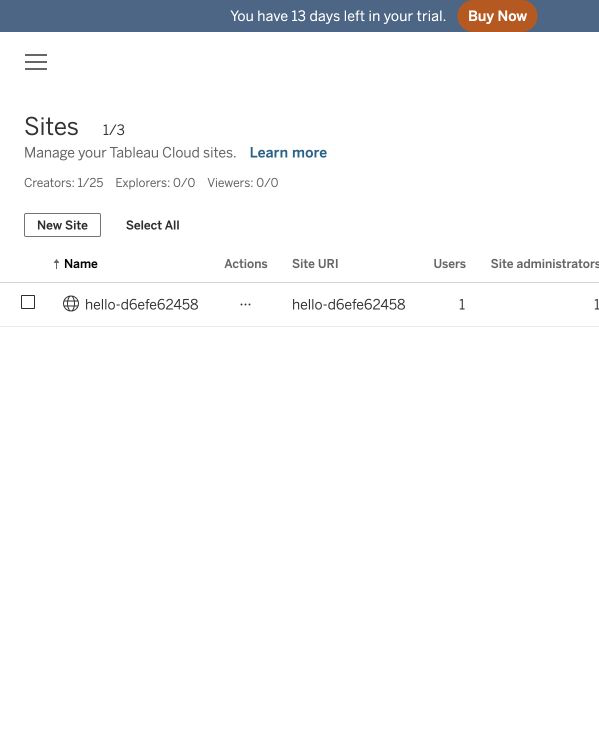
In Tableau Cloud Manager, the Site URI column is the value Formula Bot expects in Site Name.
Connection Details
| Field | Required | Description | Example |
|---|---|---|---|
| Connector Name | Yes | Friendly name for the Tableau connector | Marketing Dashboards |
| Server URL | Yes | Your Tableau Cloud URL. You can paste the full Tableau URL and Formula Bot will normalize it. | https://10ax.online.tableau.com/#/site/acme/home |
| Site Name | No | Tableau site content URL. Leave blank for the default site, or use the value after /site/ in the Tableau URL. | acme |
| Personal Access Token Name | Yes | PAT name from Tableau | formula-bot |
| Personal Access Token Secret | Yes | PAT secret from Tableau | ******** |
If you paste a full Tableau URL such as https://10ax.online.tableau.com/#/site/acme/home, Formula Bot stores:
- Server URL:
https://10ax.online.tableau.com - Site Name:
acme
Multiple Tableau Connections
You can add more than one Tableau connection from the Tableau connector page. Each connection appears as a card at the top of the page and keeps its own PAT, Tableau site, synced assets, and collections — click a card to switch between connections, or New Connection to add another. Teams can separate sites or asset scopes without sharing credentials across connections.
Setup Steps
1. Create the Connector
- Go to Connectors, then Tableau
- Enter the connection fields (if you already have a connection, click New Connection first)
- Click Test Connection
- Click Create Connector
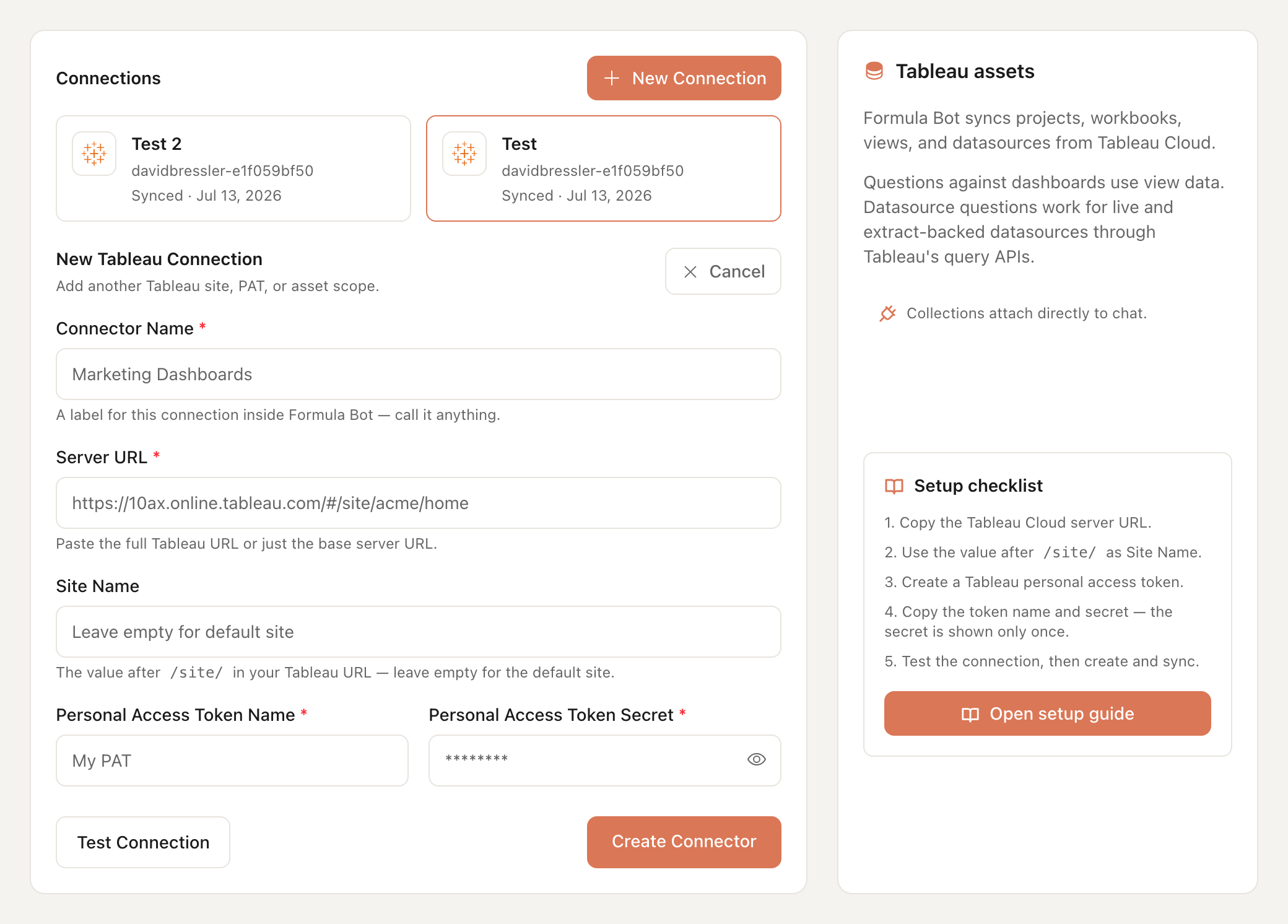
The connection test signs into Tableau with your PAT and signs out without saving the secret. Creating the connector saves the encrypted credential and starts the sync flow.
2. Sync Tableau Assets
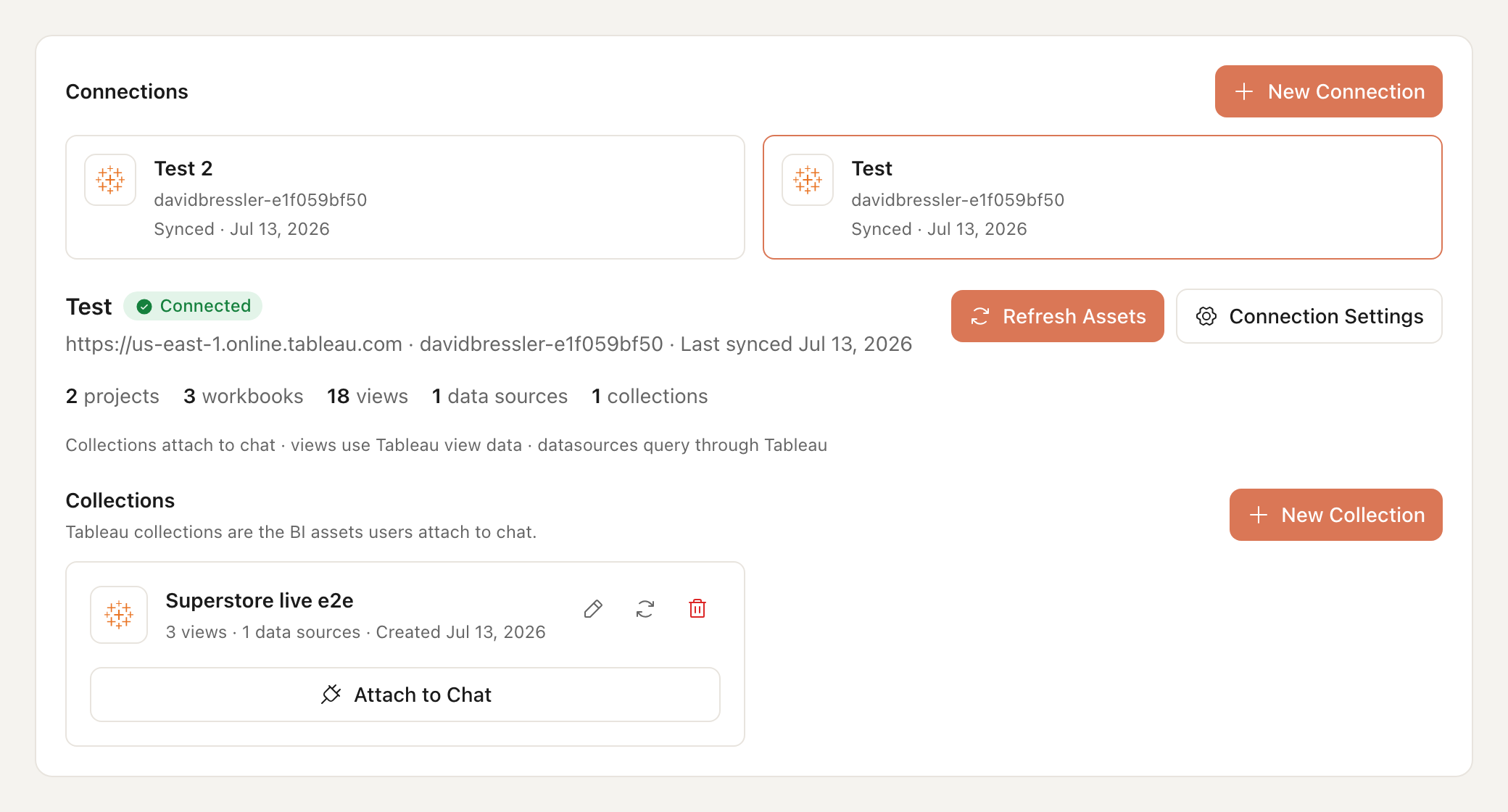
After creating the connector, click Sync Assets to fetch the Tableau assets available to the PAT user:
- Projects
- Workbooks
- Views
- Datasources
Formula Bot stores Tableau asset metadata so users can create collections without manually copying Tableau IDs.
3. Create a Collection
Collections are the chat-facing Tableau abstraction. To create one:
- Name the collection
- Select a Tableau project
- Select a workbook in that project
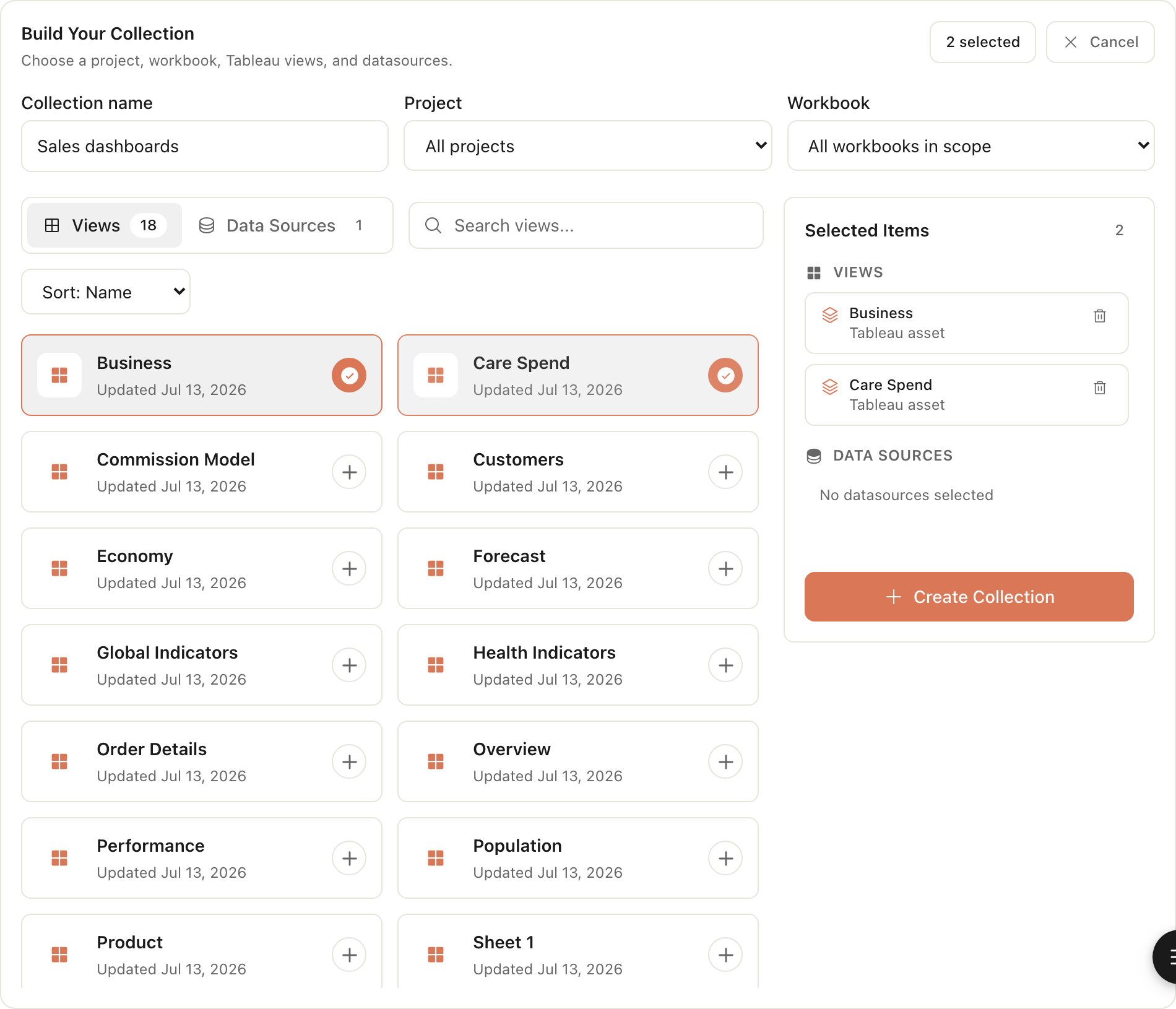
- Select one or more views
- Select one or more datasources, if datasource queries are needed
- Click Create Collection
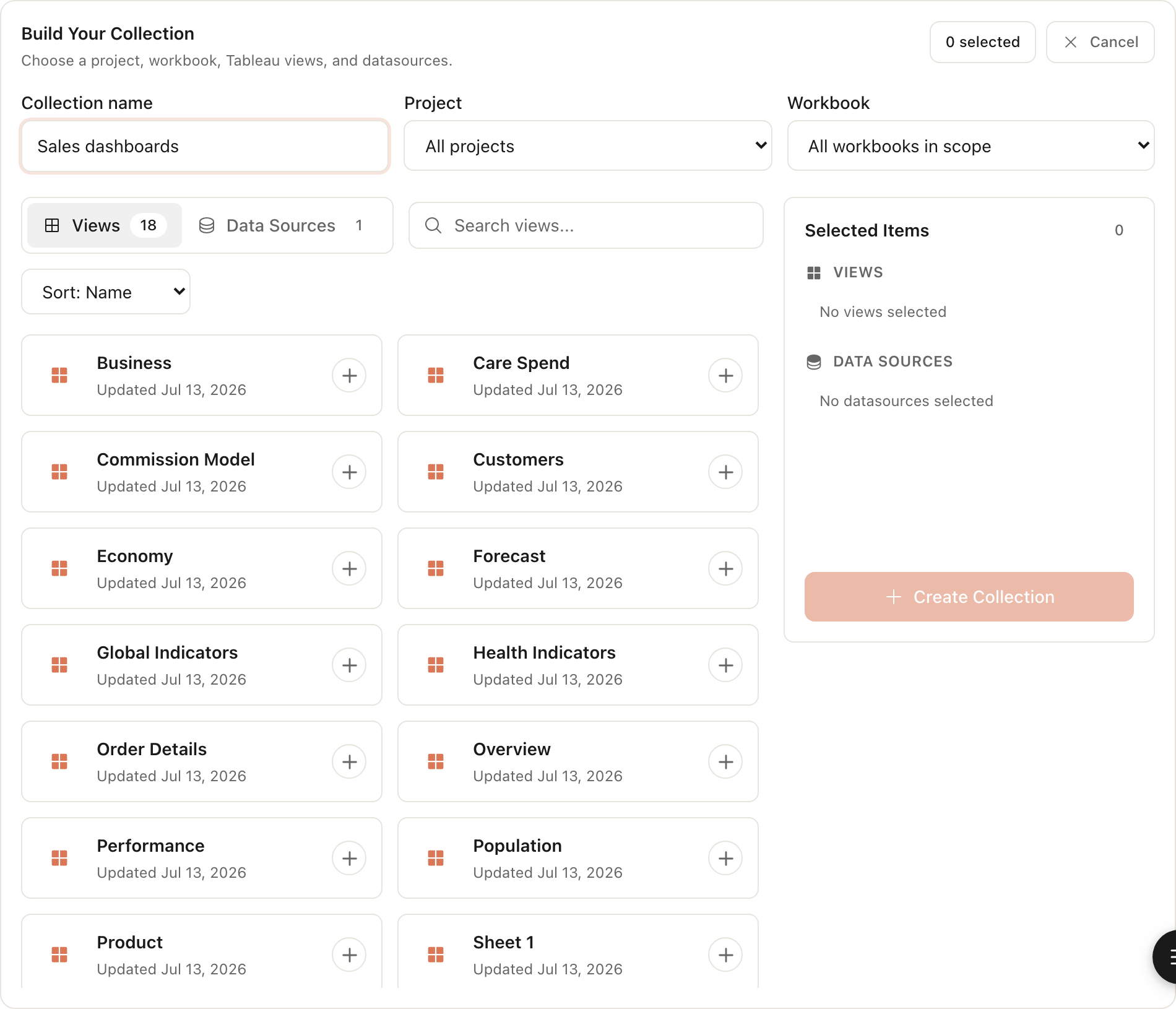
Use the Views tab for dashboard and worksheet questions.
Use the Data Sources tab for live or extract-backed datasource querying. Formula Bot uses each datasource's runtime query support to choose the right Tableau query mode.
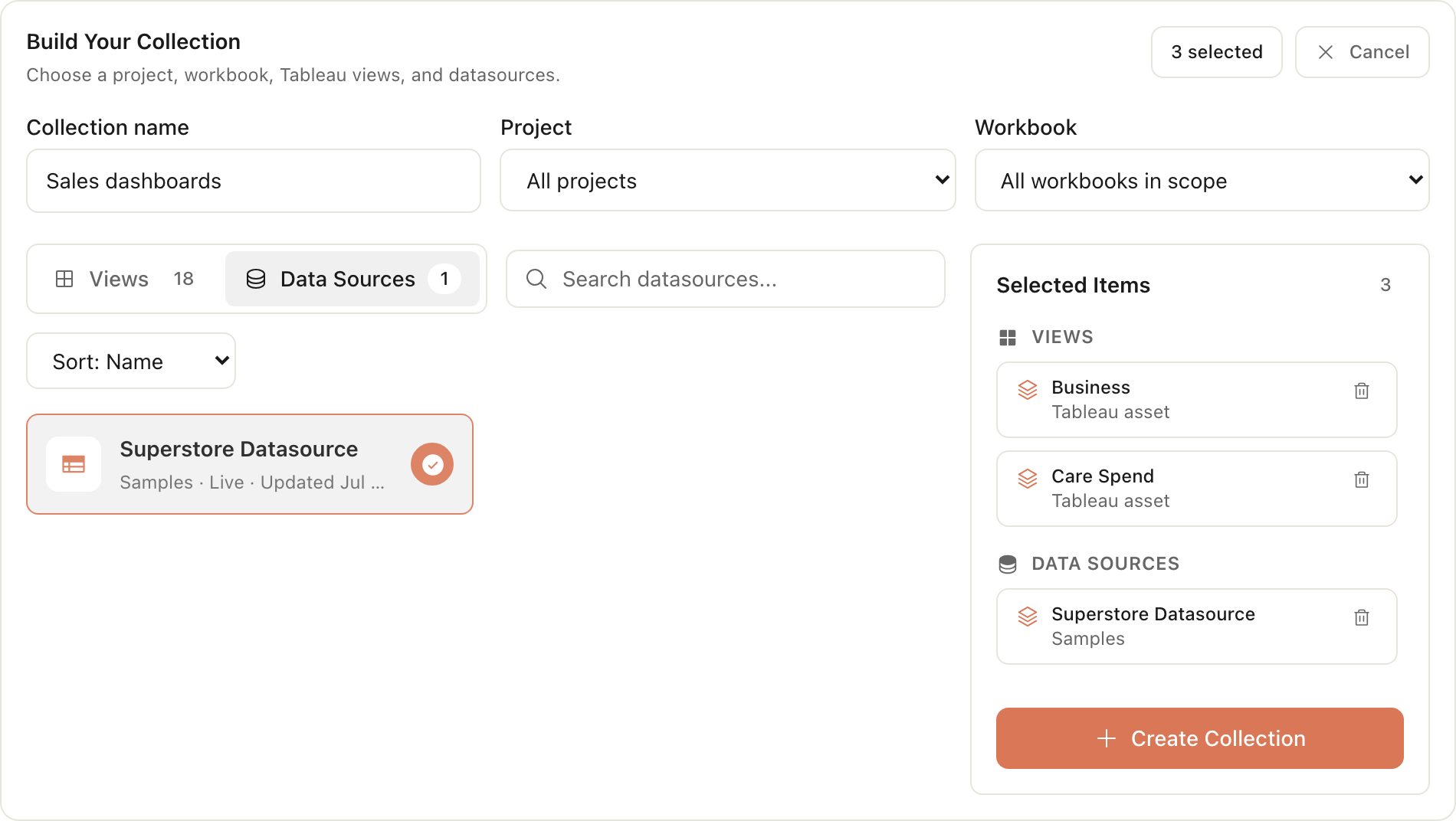
Datasource-level querying uses Tableau query APIs. Formula Bot never collects database passwords; live datasources must have credentials embedded in the published datasource.
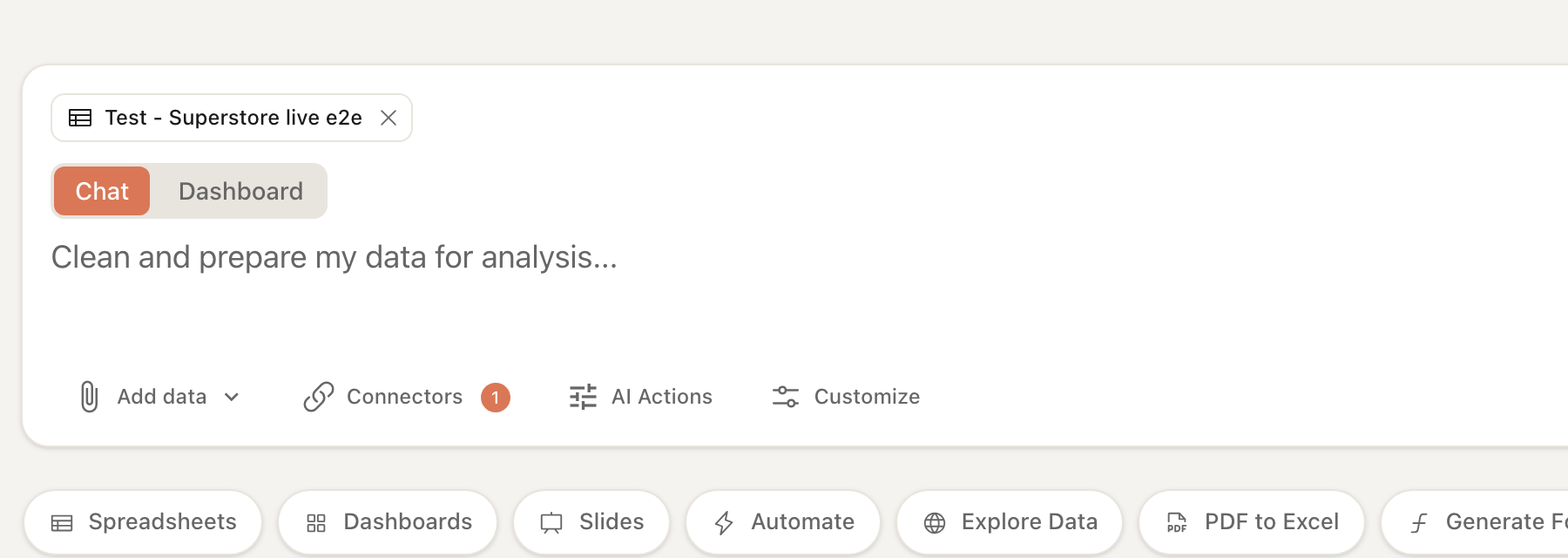
4. Attach the Collection to Chat
- Open chat
- Add a data source
- Choose the Tableau connector
- Choose the collection
- Ask questions about the Tableau dashboards or datasources
The chat works with the Tableau collection you attached. Files generated while fetching Tableau data are internal analysis artifacts, not user uploads.
How Formula Bot Uses Tableau Data
View Data Mode
For dashboard and view questions, Formula Bot uses DataFetcher with requestedDataSource: "Tableau" and tableauRequest.mode: "view_data". It calls Tableau's view data endpoint, applies any supported vf_ filters, saves the returned CSV internally, loads a dataframe in the sandbox, and hands the result to DataAnalyst.
Use view data mode for questions like:
- "Summarize this sales dashboard by region"
- "Filter the executive view to Q2 and explain the trend"
- "Create a chart from the Tableau view results"
Extract Query Mode
For datasource questions, Formula Bot uses tableauRequest.mode: "extract_query" only when the selected datasource is synced, extract-backed, and configured for extract query support. The SQL must be a single read-only SELECT or WITH query over the available extract schema.
Use extract query mode for questions like:
- "Which products drove the margin change in the extract?"
- "Group the extract rows by segment and month"
- "Join the synced extract tables and show the top accounts"
For extract-backed datasources with configured extract access, this remains the preferred path for SQL-style questions. When extract query support isn't configured, Formula Bot uses datasource query mode instead.
Datasource Query Mode
For live or extract-backed datasource questions where the runtime context allows it, Formula Bot uses tableauRequest.mode: "datasource_query". DataFetcher builds the VizQL Data Service query, so users and agents do not write SQL for this mode.
Use datasource query mode for questions like:
- "Pull the rows for this live datasource filtered to the Northeast region"
- "Show account-level records from the selected datasource"
- "Fetch datasource rows for the selected segment before charting"
datasource_query supports optional filters keyed by Tableau datasource field captions. Tableau and Formula Bot enforce row limits; if a datasource query is too large, narrow it with filters or use a Tableau view.
Editing and Refreshing a Collection
If Tableau workbooks, views, or datasources change, click the refresh icon on the collection card. Formula Bot re-authenticates with Tableau, syncs the latest assets, and updates the collection snapshot without changing its scope.
To change the collection's name, project/workbook scope, or selected views and datasources, click the pencil icon on the collection card to edit it.
Security Notes
- PAT secrets are encrypted at rest
- Secrets are never sent to the browser after save
- Tableau access follows the permissions of the PAT user
- DataFetcher only fetches assets that were synced and attached through the connector flow
- Tableau-generated CSV outputs are internal artifacts, not user-uploaded files
Troubleshooting
Test Connection Failed
- Confirm the server URL starts with
https:// - Confirm the site name matches the Tableau content URL after
/site/ - Confirm the PAT name and secret are copied exactly
- Generate a new PAT if the secret was lost or expired
PAT Creation Is Disabled
If My Account Settings shows "Your site administrator has disabled PAT creation," enable PATs from Settings, then General, then Personal Access Tokens, then return to My Account Settings to create the token.
No Projects or Workbooks Appear
- Confirm the PAT user can view the Tableau content
- Refresh the connector sync
- Check whether the content is on a different Tableau site
Datasource Cannot Be Queried
- Confirm the PAT user has the API Access permission capability on the datasource
- Confirm live datasources have credentials embedded in the published datasource; Formula Bot never collects database passwords
- Use an extract-backed datasource with configured extract access for
extract_query, or usedatasource_querywhen the runtime context supports it - Refresh the connector or collection after datasource changes
View Data Looks Filtered or Incomplete
- Check dashboard filters and default view state in Tableau
- Confirm filter names match Tableau field names when using
vf_filters - Refresh the collection to update view metadata